Browser
Requirements
Before you start, you must complete the Clients repository setup instructions.
Build Instructions
Build and run the extension:
cd apps/browser
npm run build:watch
Load the unpacked browser extension in your browser using the instructions in the next section.
Testing and Debugging
Chrome and Chromium-based browsers
To load the browser extension build:
- Navigate to
chrome://extensionsin your address bar. This will open the extensions page - Enable “developer mode” (toggle switch)
- Click the “Load unpacked” button
- Open the
buildfolder of your local repository and confirm your choice
You will now have your local build of the browser extension installed.
You can debug the background page of the browser extension by clicking “background.html” underneath
the Bitwarden heading in chrome://extensions. You can debug the popup by right-clicking it while
it is open and clicking “Inspect”.
Firefox
To load the browser extension build:
- Navigate to
about:debuggingin your address bar. This will open the add-on debugging page - Click “This Firefox”
- Click “Load Temporary Add-on”
- Open the
buildfolder of your local repository and open themanifest.jsonfile
You will now have your local build of the browser extension installed.
The temporary add-on will only be installed for the current session. If you close and re-open Firefox, you will have to load the temporary add-on again.
You can debug the background page of the browser extension by clicking the “Inspect” button next to the Bitwarden heading in the Temporary Extensions page. To debug the popup:
Inspect the background page using the instructions above
Click the “three dots” in the top right-hand corner of the debugger and click “Disable Pop-up Auto-hide”
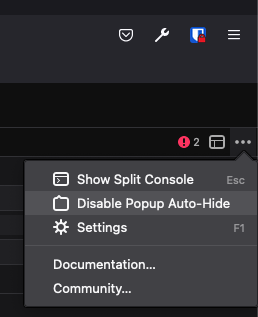
Open the extension popup
Click the “iframe” button (next to the “three dots”) and select “/popup/index.html”
Safari
Resetting the extension reference paths
On MacOS, the Browser extension is packaged with the Desktop client. If you’ve built, installed or ran the Desktop client before (including the official release), there’s a risk that Safari will continue to load the official Browser extension and not the version you’ve built from source.
To avoid this, follow the instructions below to “reset” Safari’s extension reference paths:
- Open Safari
- Click “Preferences” and then click the “Extensions” tab
- Uninstall the Bitwarden extension
- Quit and completely close Safari
- If you have the official Desktop client installed, uninstall it
- If you have previously built the Desktop client from source, delete the
PlugInsdirectory (if it exists) and the.dmg(if you ran the Mac Apple Store build) - Reopen Safari and check Preferences to confirm that there is no Bitwarden Browser extension installed
- Quit and completely close Safari
You may need to do this periodically if you are loading the Browser extension from different sources (for example, switching between a local build and the official release).
Testing
To build and load the Browser extension:
Build the extension for Safari
npm run dist:safari:dmgOpen Safari and check Preferences to confirm that the extension is installed and enabled
You may need to Configure Safari in macOS to Run Unsigned Extensions.
To enable debugging:
- Click “Preferences” and then click the “Advanced” tab
- Enable “Show Develop menu in menu bar”
You can debug the background page of the browser extension by clicking
Develop -> Web Extension Background Pages and then selecting Bitwarden. You can debug the popup by
right-clicking it while it is open and clicking "Inspect Element".
This should be enough for most debugging and testing, unless you're working in native code.
Developing in Xcode
You can also build and debug using Xcode, which allows for a more iterative approach without having to wait a long time for the build to compile.
Build the extension:
npm run buildEdit
build/manifest.json. Move thenativeMessagingpermission from theoptional_permissionssection into thepermissionssectionOpen
src/safari/desktop.xcodeprojin Xcode